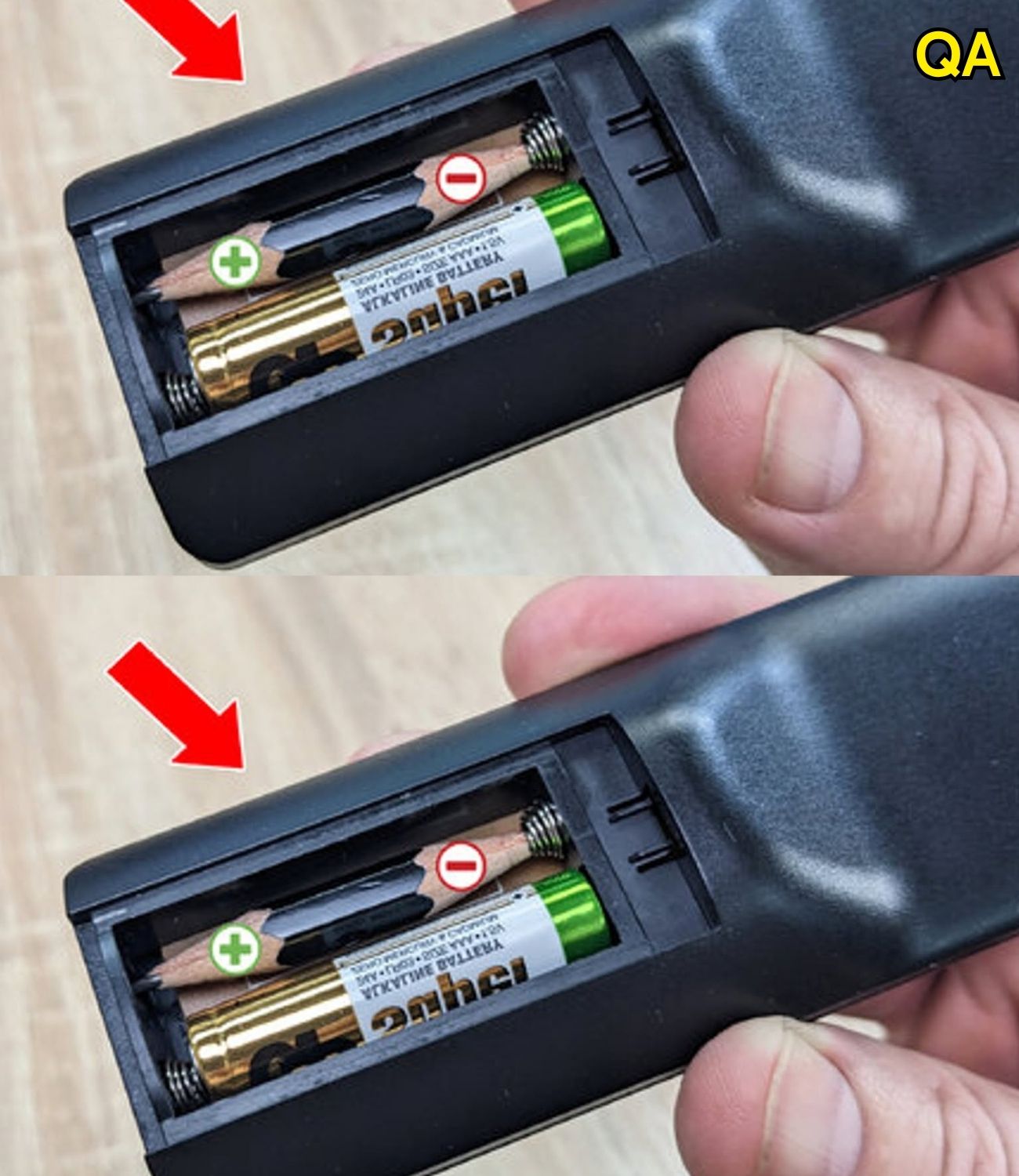
You press the button once. Nothing happens.
You press it again, point the remote directly at the television, and try a few more times. Still nothing.
Before assuming the remote is broken or buying a replacement, there are several simple things you can check. In many cases, the problem comes down to batteries, a blocked signal, dirty contacts, or everyday wear and tear.
Here are some practical steps to try.
1. Start With the Batteries
Weak or incorrectly installed batteries are among the most common reasons a remote stops responding.
Open the battery compartment and check that the batteries are facing the correct direction. Look for the positive and negative markings inside the compartment.
If you’re unsure about the batteries, replace them with a fresh set of the correct type.
It’s also worth checking the metal contacts inside the compartment. If they appear dirty or slightly corroded, remove the batteries and gently clean the contacts with a dry cloth. Make sure everything is completely dry before installing new batteries.
2. Make Sure Nothing Is Blocking the Signal
Many traditional TV remotes communicate with the television using infrared light.
That means the remote generally needs a reasonably clear path to the TV’s infrared receiver.
Move objects that may be sitting directly in front of the television and try pointing the remote toward the receiver from a short distance.
If the remote works when you’re close to the TV but not from farther away, the problem may be related to signal strength, positioning, or an obstruction.
3. Check Whether the Remote Is Sending an Infrared Signal
Some smartphone cameras can detect infrared light that isn’t visible to the human eye.
To try this, open your phone’s camera and point the front of the remote toward the camera lens. Press one of the remote’s buttons while watching the screen.
On some phones, the infrared transmitter may appear as a small flashing light.
However, this test does not work reliably with every smartphone because some camera systems filter infrared light. So if you don’t see a flash, that doesn’t automatically prove the remote is defective.
4. Clean the Remote’s Exterior
Dust, food particles, and everyday grime can accumulate around frequently used buttons.
Start by removing the batteries. Then use a soft, slightly damp microfiber cloth to clean the outside of the remote.
For dirt around the buttons, use a cotton swab with a small amount of appropriate electronics-safe cleaning solution. Avoid soaking the remote or allowing liquid to enter the openings.
Let the device dry completely before putting the batteries back in.
5. Check for Physical Damage
Think about what happened before the remote stopped working.
Was it dropped? Was something spilled on it? Has a button become unusually loose or difficult to press?
A significant fall can damage internal components, while liquid can affect the circuit board and button contacts.
If the remote has suffered substantial damage, repeatedly opening or bending it may make the problem worse. In that situation, replacing the remote may be more practical.
6. Try a Simple Reset
Some electronic remotes can be reset by removing the batteries and holding down the power button for several seconds.
Afterward, reinstall the batteries and test the remote again.
The exact reset procedure varies between models, so if this doesn’t work, check the manufacturer’s instructions for your particular remote.
7. Don’t Try Risky Battery Hacks
You may come across online suggestions involving aluminum foil, heating batteries, creating homemade battery spacers, or attempting to revive depleted batteries.
These methods are not worth the risk.
Do not heat, puncture, modify, or otherwise tamper with disposable batteries. A damaged battery can leak or become a safety hazard.
If the batteries are depleted, replacing them with the correct type is the safest solution.
8. What If the Remote Still Doesn’t Work?
If you’ve installed fresh batteries, checked the signal path, cleaned the remote, and tested the buttons without success, the remote itself may have developed an internal fault.
Fortunately, replacing it doesn’t necessarily mean replacing the television.
Depending on the TV model, you may be able to control it using:
-
The physical buttons on the television
-
An official smartphone app
-
A compatible universal remote
-
A replacement remote designed for your specific model
Before purchasing a replacement, check the exact model number of your television so you can choose a compatible option.

A Few Minutes of Troubleshooting Can Save You a Replacement
A malfunctioning remote can be surprisingly frustrating, especially when the television itself is working perfectly.
But don’t throw the remote away immediately.
Start with the simplest possibilities: check the batteries, clear the signal path, clean the buttons and contacts, and look for signs of physical damage. These basic checks can often identify the problem without requiring technical knowledge.
And if the remote really has reached the end of its life, a compatible replacement or official mobile app may be all you need to get back to watching TV.